


 Netherlands
 Bestseller
 All Printers
 All Labels
 Money Counters
 All Accessories
Have you always dreamed of creating your own labels? Whether for the office or home, name tags for a party, or just for fun – numerous ideas can be implemented with an app. In this article, you will learn how to create creatively designed labels in four simple steps.
Step 1: Download the Munbyn Print App
Start by downloading the free Munbyn Print app from the App Store or Google Play. Simply search for "Munbyn Print".
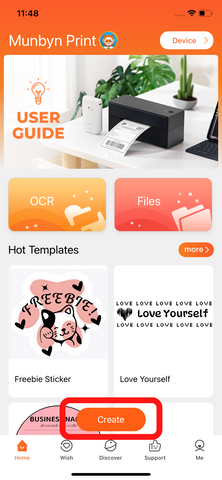
After installing and opening the app, tap "Create" at the bottom of the screen. You will be directed to a selection of templates, ranging from simple labels to elaborate designs. Choose a suitable template and enter the desired width and length measurements. To adjust the measurements, tap the corresponding icon next to the values and modify them according to your needs.

Step 2: Design your own label
If you don't want to use a template, you can also design your label completely yourself.
Tap the "Text" field to insert your own text. To change the text size, simply drag the edges of the text box until the size meets your wishes.

Step 3: Personalize your label
Choose a font: Select a font that matches the style of your label, whether modern or vintage. For a special look, you can browse our free font collection.
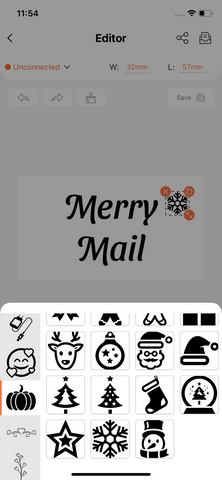
Add an icon: Add icons to your design to give it a personal touch! Use symbols as decorative elements that don't necessarily have to be in the center – play with their placement on each label!


Step 4: Print the label
Once your label is finished, click "Preview and Print" in the right corner. Then connect to your Bluetooth printer and select "Print".

Munbyn Print App

Convenience
The app offers 15 themes, 66 fonts, and 600 icons. You can select a template to create your thank you stickers, logo labels, ingredient declarations, product information, and much more.
FAQ Section
The Munbyn Print App has an FAQ section to collect customer feedback. In this community, you can ask questions and get answers from other small business owners.
Compatibility
The app is compatible with the Bluetooth thermal label printer RealWriter 941B, the portable Bear label printer 031, and the Penguin mini printer 032.
Earn points
Have you recently placed an order? In the Munbyn Print App, you can earn 10 points for every dollar spent, which can later be redeemed for free consumables.
So there you have it! These are the four simple steps to creating creative labels for your home or office. We hope you've learned something new and can use this information in your next DIY project.
Share:
12 Simple Methods: How to Remove Label and Sticker Residue from Any Surface
How to print a perfect shipping label?