



 France
 Bestseller
 All Printers
 All Labels
 Money Counters
 All Accessories
As e-commerce continues to evolve in 2026, smaller retailers are increasingly relying on localized micro-warehousing to remain competitive against the major retail giants. A level of efficiency that was once a luxury for business owners is now a tool for survival. But even the most sophisticated online platform can be disrupted by something as trivial as a hardware error: misaligned shipping labels – a true nightmare, isn't it? When labels are printed crooked, cut off, or entirely blank, it not only leads to material waste but also causes shipping delays. For many entrepreneurs trying to balance brand growth and logistics, it's precisely these technical issues that distract them from their actual work. Understanding how your hardware works is the first step to regaining your efficiency and ensuring that every package you send out looks professional.
Why Your Labels Are Misaligned
Misalignment occurs when the printer's internal sensors and the physical print media no longer communicate properly. Below, we'll look at the reasons why your labels might shift during a print job.
Whether you're using a standard desktop printer or a specialized thermal label printer, print precision depends on the synchronization between the motor and the label sensor. Alignment problems are usually not a sign of a defective machine, but rather caused by environmental factors or minor setting deviations. Dust, adhesive residue, or even a slight shift in the paper guide can disrupt the delicate balance required for perfect label alignment.
Common Causes of Hardware Drift
Small physical obstructions are often the main causes of incorrect label alignment. Even a tiny piece of label backing stuck in the roller can cause the paper to feed crooked, leading to continuous errors.
|
Problem |
Possible Cause |
Immediate Solution |
|
Labels are skipped |
Dirty media sensor |
Clean sensor with isopropyl alcohol |
|
Text shifts off-center |
Loose paper guides |
Tighten guides against label roll |
|
Incomplete print |
Defective print head |
Check for physical damage or residue |
|
Continuous paper feed |
Wrong media type |
Update settings to "labels with gaps" |
How to Calibrate a Label Printer for Perfect Results
Calibration is the process of "teaching" your printer the exact label length and the distance between gaps. Mastering this skill ensures that every print starts and ends exactly where it should.
If you find that your printer is skipping labels or printing beyond the perforation, it's time to perform a label printer calibration. This reset allows the hardware to relearn the boundaries of your media, which is especially important when switching between different label brands or sizes. While manual calibration varies by model, the core logic remains the same for most professional devices.
Performing a Manual Calibration
Most conventional thermal printers require a specific sequence of key presses to initiate learn mode. To start a calibration cycle, you typically hold down the feed button until the status light flashes a certain number of times, signaling the device to measure the media.
-
Restart: Turn off the printer and ensure the labels are correctly loaded under the guides.
-
Initiate Learn Mode: Hold down the feed button while turning the device back on.
-
Observe: Watch the printer feed 2–3 labels to identify the gap or black mark.
-
Verify: Press the feed button once to check if exactly one label is dispensed.
Troubleshooting Common Software Alignment Settings
Sometimes the hardware works perfectly, but the instructions it receives from your computer are faulty. Software-based label alignment issues are common when using different shipping platforms or PDF generators.
Before assuming a mechanical defect, always check if your digital design matches your physical media. If your computer thinks you're printing on a 4x6 label but you've loaded 2x2 labels, the alignment will never be correct. Checking the "Print Settings" in your Windows or Mac systems is a crucial step in any troubleshooting workflow.
Adjusting Driver Properties for Better Alignment
The printer driver acts as a translator between your design software and the hardware. Within the driver settings, you can manually define the dimensions to ensure consistent alignment across different batches.
Most modern drivers allow you to create custom "stocks" or "forms." By saving a specific profile for each label size you use, you reduce the risk of a calibration error. Make sure the "non-printable area" is set to zero to prevent the driver from adding unnecessary margins that shift your design.
Why MUNBYN DAC Technology Prevents Misalignments
Modern innovations have led to the development of smarter hardware that takes the tedious calibration out of your hands. MUNBYN has integrated advanced features to support busy entrepreneurs who cannot afford to waste time on manual troubleshooting.
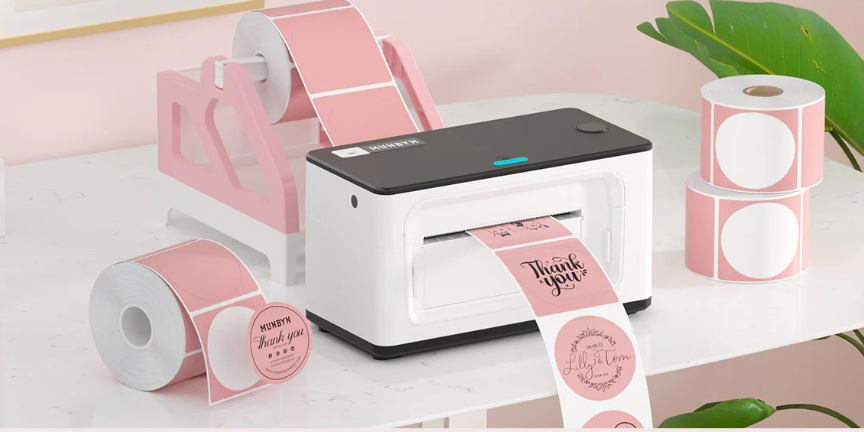
The RealWriter 405B Bluetooth Thermal Label Printer is an excellent example of how technology can simplify logistics. Instead of requiring manual calibration every time the roll is changed, these devices use DAC (Dynamic Auto-Calibration) technology. This system ensures automatic paper alignment and precision by recognizing the media's characteristics the moment the lid is closed.

The Benefits of Automatic Size Detection
Automatic detection means the printer identifies the edges of your labels without user intervention. This drastically improves alignment accuracy, even with different shapes like circles, rectangles, or small jewelry labels.
-
No manual setup: The printer adjusts immediately to the label's width and length.
-
Less waste: No need to print test labels to find the gap.
-
Versatility: Seamless switching between shipping labels and brand stickers.
Maintenance Tips for Consistent Label Alignment
A clean printer is a reliable printer. Regular maintenance prevents residue buildup that could interfere with the sensors.
You should make it a habit to clean the print head and sensors every time you change a roll of labels. This simple measure prevents the sensor for the gaps between labels from becoming "blind" – a major cause of failed calibration attempts. Use a lint-free cloth and 99% isopropyl alcohol to gently wipe the sensors along the paper path.
Professional Cleaning Checklist
Maintaining your equipment ensures your label alignment remains perfect for years. This is especially important for high-volume sellers who process hundreds of orders daily.
-
Inspect platen roller: Ensure no adhesive residue is clinging to the black rubber roller.
-
Clean media path: Remove paper dust or debris from the internal housing.
-
Wipe sensors: Locate the transmissive or reflective sensors and ensure they are free of buildup.
-
Test feed: Regularly press the feed button to ensure paper exits straight.
Optimizing Your Workflow with Advanced Hardware
Choosing the right tools can eliminate many of the technical problems associated with e-commerce logistics. Investing in a high-quality label printer, such as MUNBYN's thermal label printers, allows you to focus on your customers instead of your hardware.
For entrepreneurs and small business owners, the goal is a "plug-and-play" experience. When your equipment has automatic calibration features, you eliminate a significant barrier to shipping efficiency. Reliable hardware ensures that your branding remains consistent and your professional image is maintained with every package delivered.
Choosing the Right Printer for Your Business
When looking for new equipment, look for features that specifically address the typical pain points of thermal printing. A printer that supports both USB and Bluetooth connectivity offers the flexibility needed for a modern home office or warehouse.
-
Speed: Look for printers that can handle at least 150 mm/s to keep up even during peak season.
-
Compatibility: Ensure the device works seamlessly with all popular shipping platforms like Shopify, Etsy, and UPS.
-
Technology: Prioritize DAC technology and automatic alignment to save costs in the long run.

Conclusion
Resolving alignment issues with a label printer requires a combination of effective hardware maintenance and correct printer software settings. By learning how to calibrate your printer and keep the media path clean, you can fix 90% of common printing errors. For the remaining 10%, you can rely on smart technologies like MUNBYN's automatic alignment systems, which serve as a safeguard and enable smooth business operations.
The transition from manual troubleshooting to a system that works automatically and efficiently is a big step for a growing brand. As you expand your business, you should be able to focus on your products and your community, instead of wasting time and energy on misaligned labels. With the right understanding and equipment, you ensure that every package that leaves your premises is a testament to your professionalism and attention to detail. Correct label alignment is not just a technical solution; it is a commitment to the trustworthiness of your brand promise to your customers.
Share:
How to Choose the Right Printer for E-Commerce Orders
Guide to Designing Logo Stickers for Small Businesses